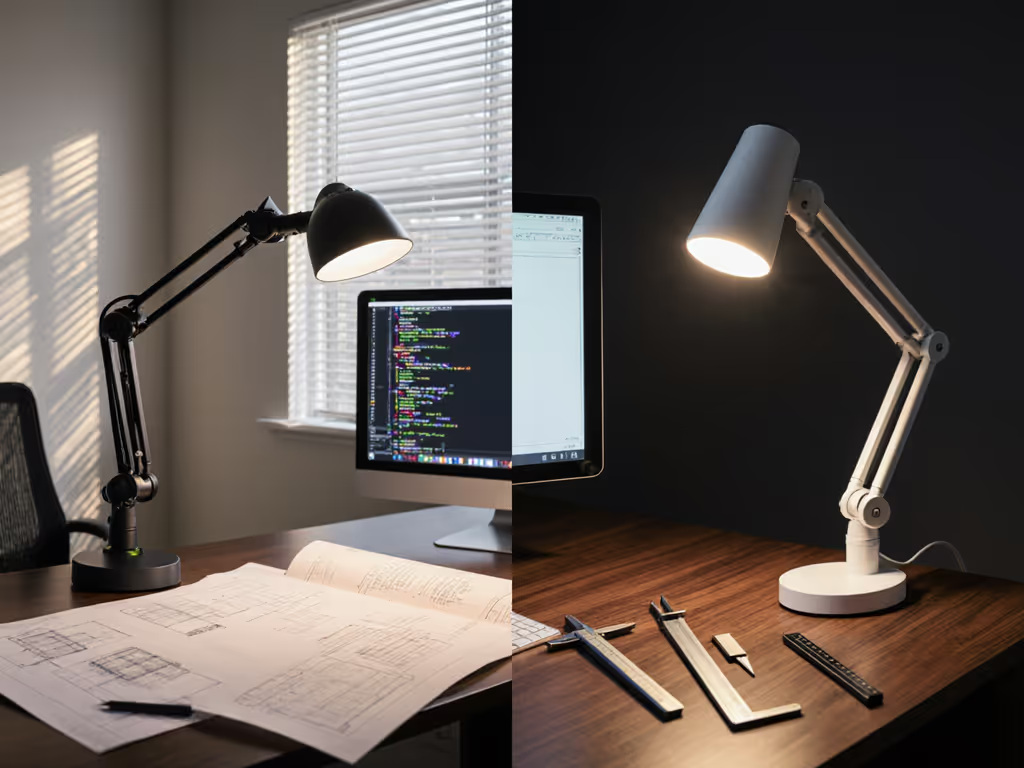
Articulated vs Telescoping Lamp Arms: Reach & Stability
7th Mar•5 min read
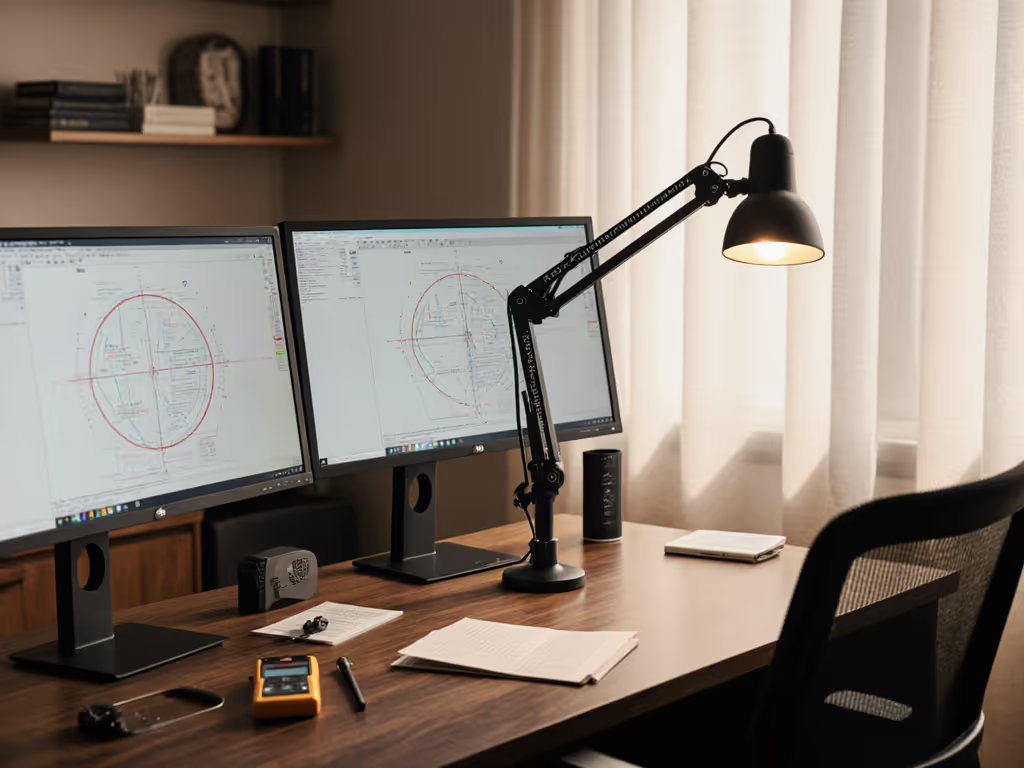
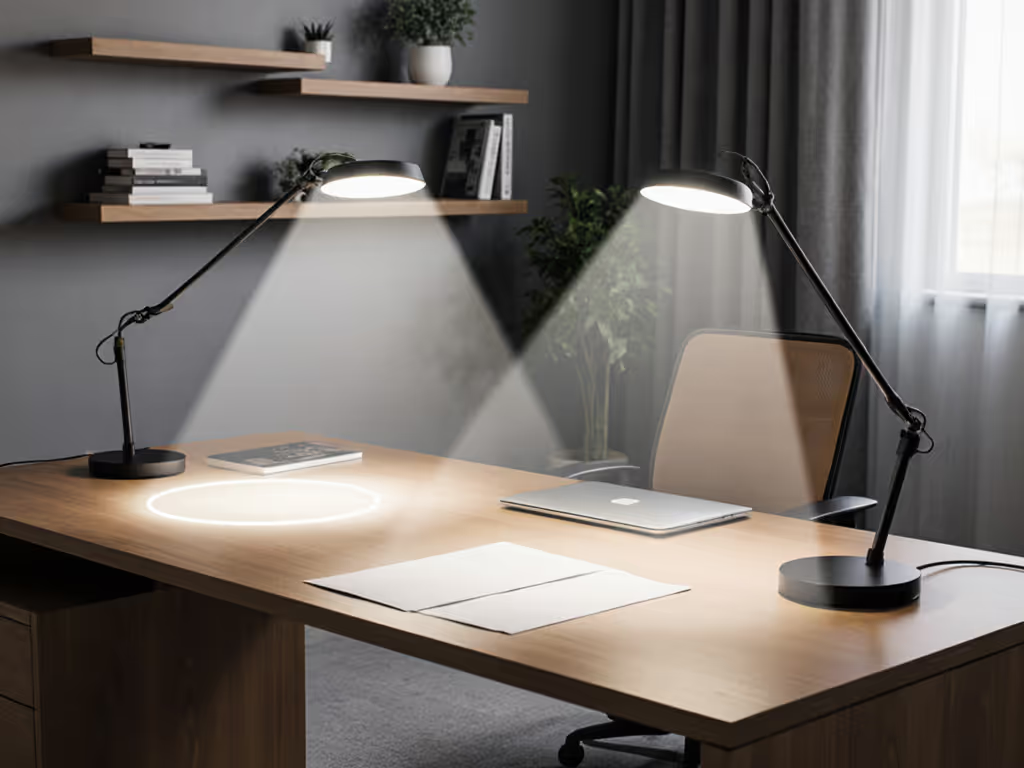
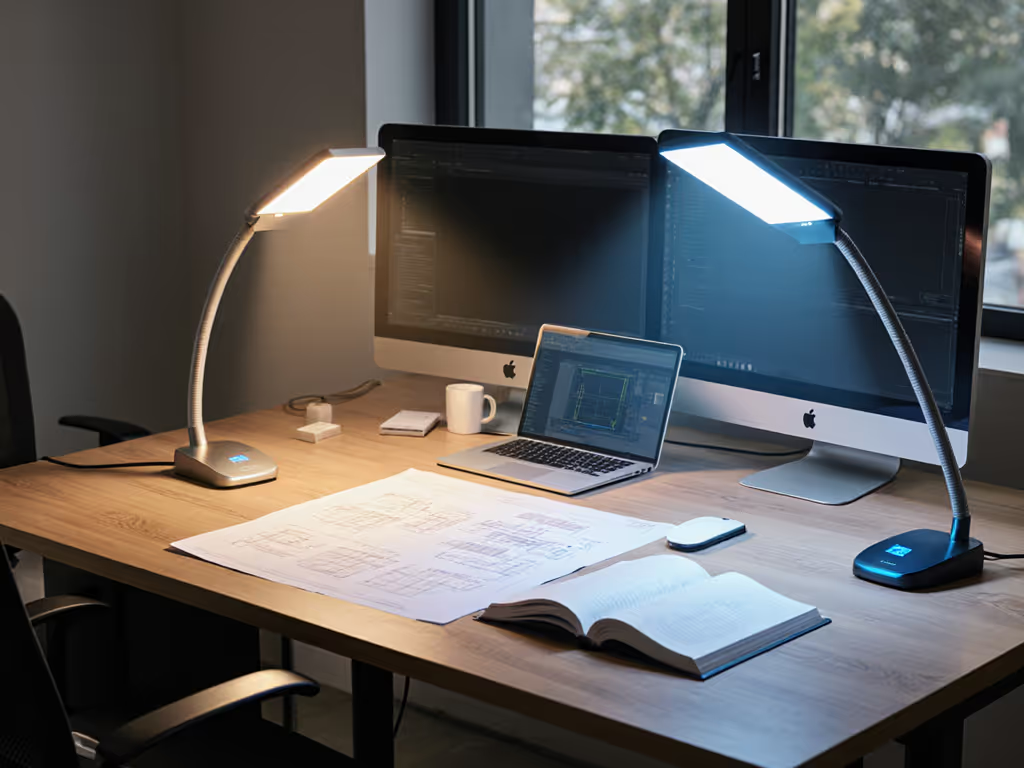
Dual-monitor desk lighting isn't just about adding more brightness, it's about matching your beam pattern and geometry to the unique geometry of two screens. When light hits dual monitors the wrong way, you trade visual clarity for glare, shadow zones, and the cognitive fatigue that comes from constant micro-adjustments. The right approach ties monitor-specific beam spread to your actual desk footprint, color fidelity to your work, and consistency across both screens so you stop second-guessing your eye.
Let me walk you through the framework that separates setups that merely work from setups that protect color judging and reduce rework rates.
A single monitor sits in a predictable zone. With two monitors (whether side-by-side, angled, or stacked) the working plane expands, and direct light now has to avoid glare on two reflective surfaces without abandoning coverage on the desk between them. Most single-lamp setups create a hot spot over one monitor and leave the other in shadow or wash both with scattered reflections.
Bias lighting (indirect light placed behind your screens) helps reduce contrast and eye fatigue[3], but it doesn't solve the fundamental problem: your task light must have a monitor-aligned beam geometry that lights your work surface without pooling on the glass.[4] This is where beam spread (measured in degrees and lux falloff) becomes critical. For a step-by-step setup specific to two screens, see our dual monitor lighting guide.
A 24-inch monitor positioned 20 inches away requires a tighter beam focus than a 34-inch ultrawide at the same distance. The angle subtended by each screen from your typical desk lamp position determines how much direct light hits the glass versus the keyboard or desk.
When two monitors of different sizes sit asymmetrically on your desk, a single overhead or side-mounted lamp often over-illuminates one and under-illuminates the other, or creates a shadow band between them. This mismatch doesn't just look ugly; it degrades your color consistency when you're comparing samples across both screens.
Turn off ambient light. Observe where the beam pools on your desk, on the monitor bezels, and on the walls. Are there distinct hot spots or a diffuse wash? Does the beam shape match your desk layout, or does light scatter toward areas you don't use?
A well-designed asymmetrical beam (common in professional task lights) concentrates intensity on the work plane while leaving the upper zone (where monitors live) softer, reducing glare. Symmetrical beams are simpler to manufacture but often light monitors and work surface equally, the worst of both worlds.
Smartphone lux meters are imperfect but revealing. Measure at the center of your desk, then at 15 inches to each side. If you see a 50% drop-off or more, your beam is too narrow or too high. If the reading is even but feels dim on-screen (because light is hitting the monitor instead of underneath), your beam angle is wrong for your setup.
For detailed work (drafting, retouching, model painting), aim for 750-1,000 lux at the desk plane; for reading and general screen work, 300-500 lux is sufficient once you've eliminated glare.[4] For science-backed placement tactics to reliably hit 500 lux without glare, read our optimize desk lighting guide. These aren't magic numbers: they're thresholds where eye strain noticeably drops for most users, especially those over 45 who experience presbyopia and need more illuminance to focus comfortably.
Monitor backlighting (bias lighting) should be uniform and subtle, ideally 60 lux or less, in a neutral white (around 6500K) that balances contrast without washing out the screen image.[1][4] If one monitor has a visible bright halo and the other doesn't, your secondary light source isn't aligned to your dual setup. This asymmetry creates competing color temperatures and can distort your color judgment, especially if you're comparing proof samples between screens.
I once matched a jacket color under a 3000K lamp with weak R9 reds (around 50), and it looked perfect until I stepped into daylight studio work. The red appeared muted, a tone I'd misjudged entirely. Measuring later showed that lamp had a spiky spectrum with a dip in the deep-red region. When I switched to a high-CRI (95+) fixture with strong R9 (80+) and stable CCT across brightness levels, my desk matched the morning sun. Fewer re-shoots, fewer edits, more trust.
For dual-monitor work where color fidelity matters (design, retouching, material selection, or analog craft) your main task light and bias light must share the same CRI band (90+ is non-negotiable) and, ideally, the same CCT family.[2] Mixing a 4000K desk lamp with 6500K backlighting creates a perceptual conflict; your eye constantly recalibrates, and color judgments become unreliable.
CRI measures only eight pastel hues. TM-30 (IES Method for Evaluating Light Source Color Rendition) tests 99 hues and separates two metrics: Rf (fidelity, how close rendered colors match real samples) and Rg (gamut, saturation range). Deepen your understanding with our color accuracy metrics guide covering TM-30 and R9. For multi-screen comparison work, a fixture with Rf ≥ 95 and Rg between 95-105 ensures that colors appear natural and consistent whether you're viewing a swatch on-desk or on-screen.
Weak R9 (reds) in particular becomes obvious when comparing fabrics, paints, or skin tones under mixed lighting. If your task light has strong R9 but your backlighting doesn't, the two zones render red differently, a critical flaw if your role involves color matching across a desk and screen.
Beam Requirement: A beam wide enough to illuminate the desk between and in front of both monitors without creating a dark gap. Typically 60-80° wide at the mounting height.
Placement: Center the lamp behind or above the monitors, or use a single arm that can be rotated slightly. Position it 15-20 inches above the desk plane to avoid glare while delivering adequate lux downward.[4]
Why This Works: A centered, medium-spread beam treats both screens equitably. Back-positioned backlighting can wrap behind both monitors uniformly.
Watch For: If the lamp is too high or too narrow, it leaves a shadow zone between the monitors. If too diffuse, it washes both screens equally, the opposite problem.
Beam Requirement: An asymmetrical beam that concentrates intensity toward the narrower or closer monitor while maintaining a softer edge toward the wider or farther one.
Placement: Position the lamp off-center, angled to align with the work zone of the dominant screen. Use a secondary task light (smaller, clip-on, or gooseneck) for detailed work on the secondary monitor.
Why This Works: Dual-lamp systems allow independent CCT, beam angle, and CRI tuning per monitor. Asymmetrical design prevents glare on the primary screen while providing flexibility.
Watch For: Mismatched color temperatures between the two lamps create a visible split in your visual field. Ensure both are spec'd to the same CRI and CCT band.
Beam Requirement: Multiple light sources or one very wide-angle, high-output fixture (80-120° spread). Individual monitor light bars integrated into each screen's bezel can reduce spill and provide monitor-specific backlighting.
Placement: Space sources to overlap slightly and avoid gap shadows. Backlighting should be segmented per monitor to maintain uniform CCT and intensity behind each screen.
Why This Works: Fragmentation prevents single-lamp bottlenecks and allows task-specific dimming (bright for active work on monitor A, dimmer for reference on monitor B).
Watch For: Multiply fragmented light sources create complexity and risk thermal or power-draw issues. Start with one high-quality main lamp, then add secondary fixtures only if shadowing persists.
Regardless of your monitor layout, follow this sequence:
1. Identify Your Usable Desk Footprint
Measure the actual area where hands, reference materials, and input devices sit. This is your primary target for illumination.
2. Map the Screen Reflectivity Zone
Determine where monitor bezels and glass will reflect light back toward your eyes. This zone should receive softer or indirect light.
3. Select a Beam Pattern That Separates Zones
Choose a lamp with an asymmetrical or rotatable beam that prioritizes the work plane over the screens. A 60-75° wide, slightly forward-tilted beam often works for desk-centered, forward-facing dual monitors.
4. Verify Lux and Uniformity at Your Distance
Use a meter or cross-reference the lamp's published polar curve (angle-dependent intensity profile) against your specific mounting height and distance. Aim for ±30% falloff across your usable area (not zero, but smooth and predictable).
5. Layer Backlighting With Matching Spectrum
Add bias lighting at 60-200 lux behind the monitors, ensuring it shares the same CRI (90+, strong R9) and CCT (±200K of your main source). This provides reference lighting that doesn't interfere with on-screen contrast.
6. Test Color Consistency Across Both Screens
Place a neutral swatch (white, gray, or skin-tone reference card) on your desk and compare it to a matching reference displayed on each monitor. If the desk sample looks warmer, cooler, or duller than the screen versions, your spectrum or geometry is misaligned. Adjust lamp angle, height, or CCT before committing.
When evaluating fixtures, prioritize these over marketing hype:
Beam Angle / Spread (degrees): Tells you coverage width at various distances. Compare this to your desk width to predict dark zones or overlap.
Polar Curve (intensity vs. angle): Shows how brightness drops as you move away from the beam center. Steep curves concentrate light; gentle curves spread it evenly. For dual monitors, a gradual falloff (steep drop beyond 45° but soft before it) prevents hot spots while avoiding shadow bands.
CRI / TM-30 Rf / R9: Non-negotiable minimums: CRI 90+, Rf ≥ 95, R9 ≥ 75. These ensure color consistency and reduce rework when switching between desk samples and on-screen reference.
CCT Accuracy (Δuv): Lamps that drift green or magenta across brightness levels (high Δuv values) distort color judgment. Choose fixtures with Δuv < 0.003 at all dimming levels.
Flicker Rate / Modulation: For video work or light-sensitive users, opt for fixtures with >3 kHz PWM (pulse-width modulation) or true DC output. Below 1 kHz, flicker is perceptible and causes eye strain.[3] To see why driver design matters, read our LED driver technology explainer.
Output at Real Distance: Manufacturers often quote peak lux at 1 meter or 6 inches, unrealistic for desk work. Request or calculate output at your actual mounting distance (typically 15-24 inches above the desk).
Over-Reliance on RGB or Color-Changing Lights for "Accuracy"
RGB and full-spectrum tuning are fun aesthetically, but they don't improve color-critical work. A stable, high-CRI fixture beats a tunable, low-CRI one every time. Reserve RGB accents for backlighting or mood; keep your main task light fixed and accurate.
Insufficient Backlighting Behind One Screen
When dual monitors are different sizes or models, backlighting asymmetry is common. The result is uneven contrast and a perceived dimness on one side. Test and equalize backlight output across both screens, they should feel equally lit, not identical in lux.
Mounting the Lamp Too High
A lamp at or above eye level wastes output on walls and creates top-down shadows. Most desk lamps perform best 12-18 inches above the work surface. Higher mounting is a common cause of "I don't feel the light" complaints.
Choosing a Single Lamp That Can't Cover Both Monitors
If your dual setup is wide or your desk is deep, a single lamp will inevitably sacrifice coverage somewhere. Two smaller sources, carefully angled, often outperform one over-specced lamp. Cost and complexity increase slightly, but so does flexibility and glare control.
Ignoring CCT Stability During Dimming
Many budget LED fixtures shift greenish or pinkish as you dim. This distorts color judgment mid-task. Spend slightly more for a fixture with a stable CCT curve or one that includes a separate color-temperature dial.
Uniform beams protect color judging across your workspace. For dual-monitor setups, this means choosing a beam pattern that prioritizes your desk surface while managing glare on both screens, layering in backlighting with matching spectrum, and verifying lux and color consistency at your actual distance before finalizing placement.
Your lighting investment pays back in reduced eye strain, faster reading, fewer color-critical rework cycles, and the confidence that what you see at your desk will look right everywhere else. Start with a high-CRI (90+), strong-R9 (75+) task lamp with a narrow-to-medium asymmetrical beam matched to your desk depth, then layer in backlighting and secondary sources only if shadows or glare persist. Test with real color references (a swatch, a printed sample) before committing to a layout.
The framework isn't complicated, but it demands that you stop treating desk lighting as interchangeable commodity lighting and start treating it as a precision tool. Your eyes, your schedule, and your output will thank you.
As you refine your dual-monitor setup, consider these next steps:
The goal isn't just better lighting, it's restoring trust in what your eyes tell you.